App Store and Google Play
To pay in the App Store or Google Play, add the card to your account payment methods.
What you need
App Store
-
Open payment methods
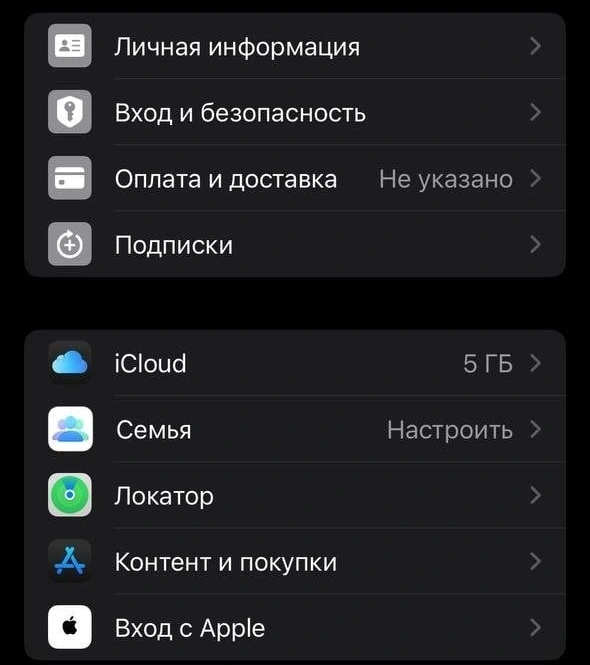
In iPhone “Settings” tap your name, then “Payment & Shipping”.
-
Add the card
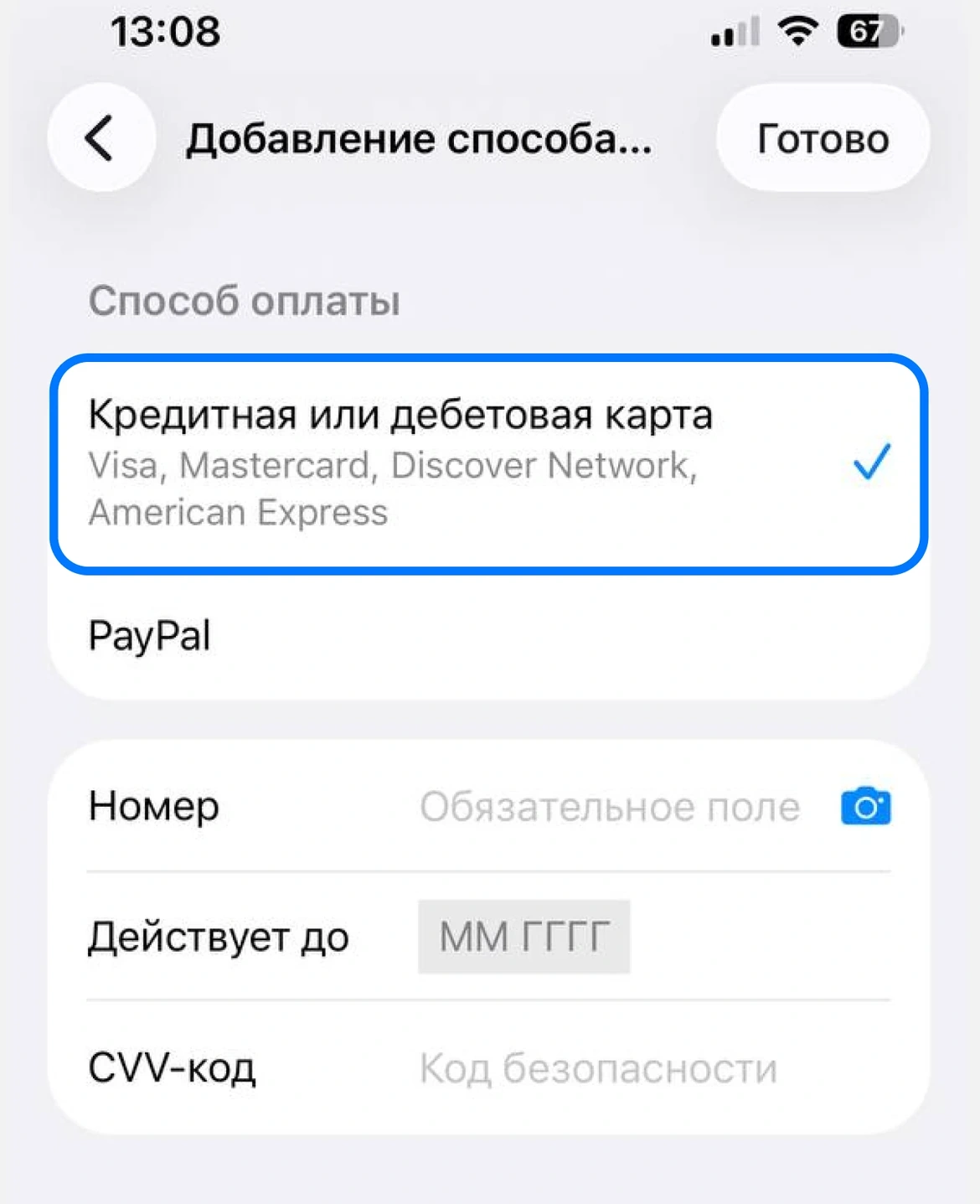
Tap “Add Payment Method”, enter the number, expiry and CVV from “Details” and the name in Latin letters.
-
Enter the address
You need an address in the country of your Apple Account. A ready-made US address is in this article in the app.
Google Play
-
Open payment methods
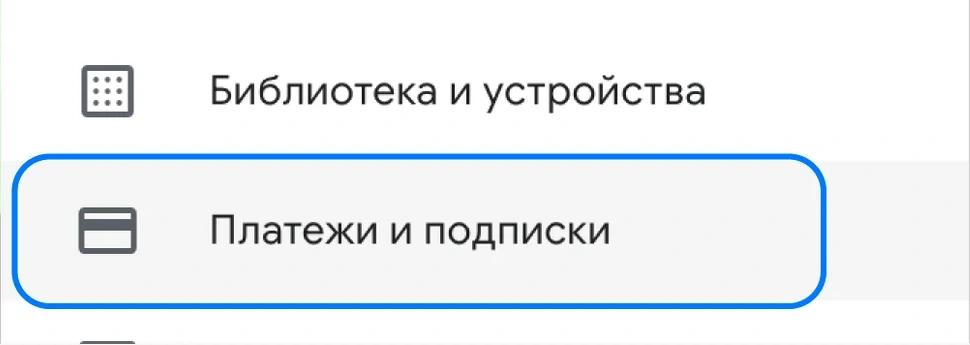
In Google Play tap the profile icon, then “Payments & subscriptions” and “Payment methods”.
-
Add the card
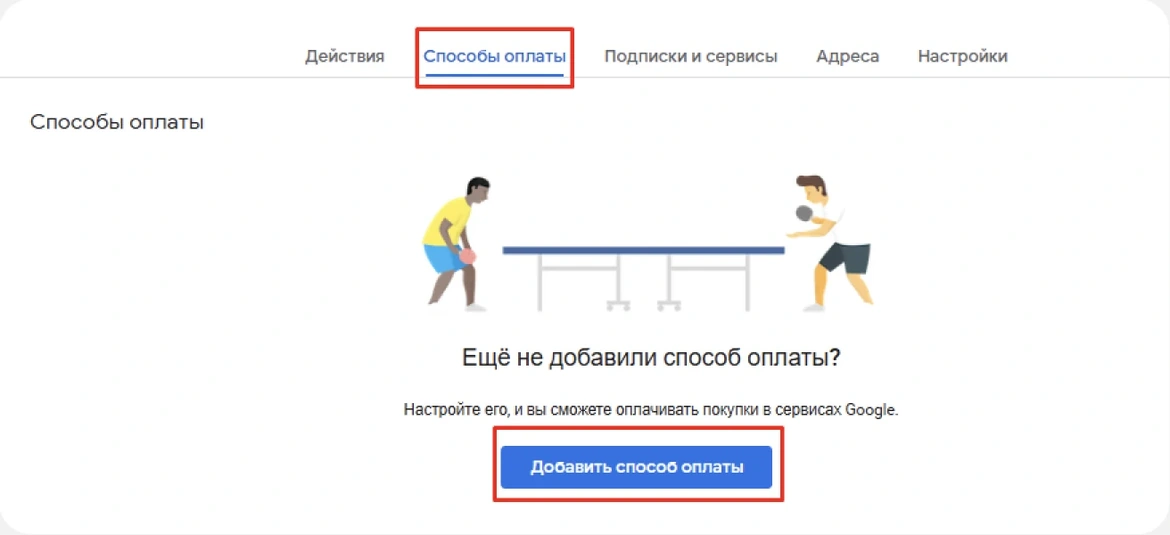
Tap “Add payment method” and enter the number, expiry and CVV from “Details”.
Billing address for the form
Ready-made addresses in the US and Estonia are in this article in the app.
Card and prices
Common questions
Google charged less than $1.95
This is a card check, Google refunds the money within 30 days. The 6-digit code is in the name of this charge. If you cannot find it, write to support.