3D Secure code and password
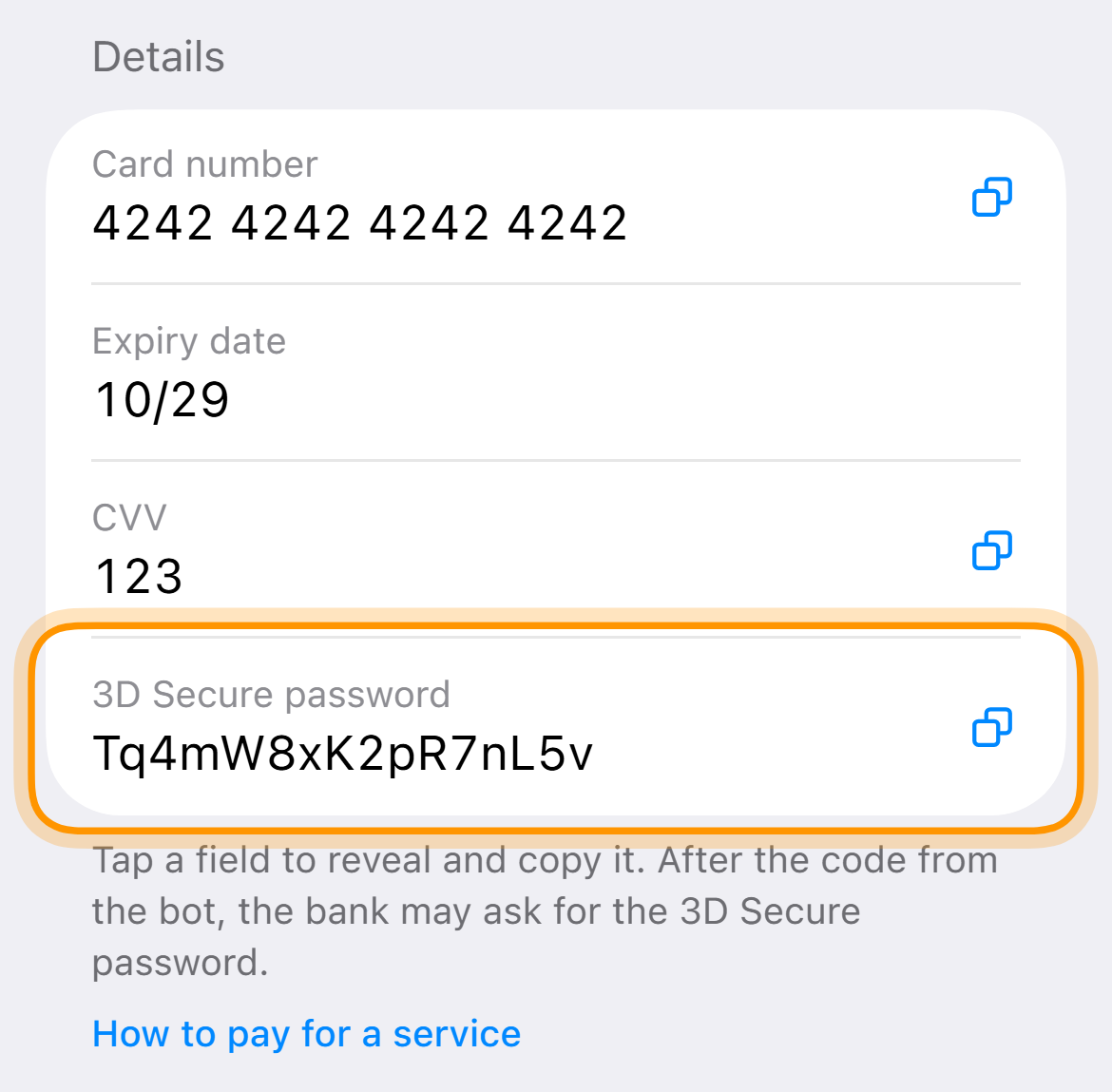
The payment confirmation code arrives in the chat with the bot. If the bank asks where to send it, choose email. The 3D Secure password is in the card details.
What you need
-
Do not close the payment page
The bank window opens on top of it. Keep the VPN on.
-
Choose email for the code
The bank may ask where to send the code and offer email or a phone number. If email is in the list, always choose it. The address will be masked, that is normal. The code arrives in the chat with the bot.
-
Enter the code from the bot message
Check the amount and store and enter the digits in the bank window.
-
Enter the password if the bank asks
In the card details tap the “3D Secure password” line. The first tap shows the password, the second copies.

Only Walletnow
Confirmation code: 482913
Payment of $20.00 · CLAUDE.AI · card •• 4242